> ## Documentation Index
> Fetch the complete documentation index at: https://docs.fullsail.finance/llms.txt
> Use this file to discover all available pages before exploring further.
# Liquidity
Full Sail uses concentrated liquidity pools. When providing liquidity, users define a custom price range within which their position remains active. This ensures capital is deployed where it is most likely to be used, rather than spread across the entire curve.
## How to Provide Liquidity
**Before You Start** Make sure you have a Sui wallet installed and sufficient balance of each token plus enough SUI to cover transaction fees.
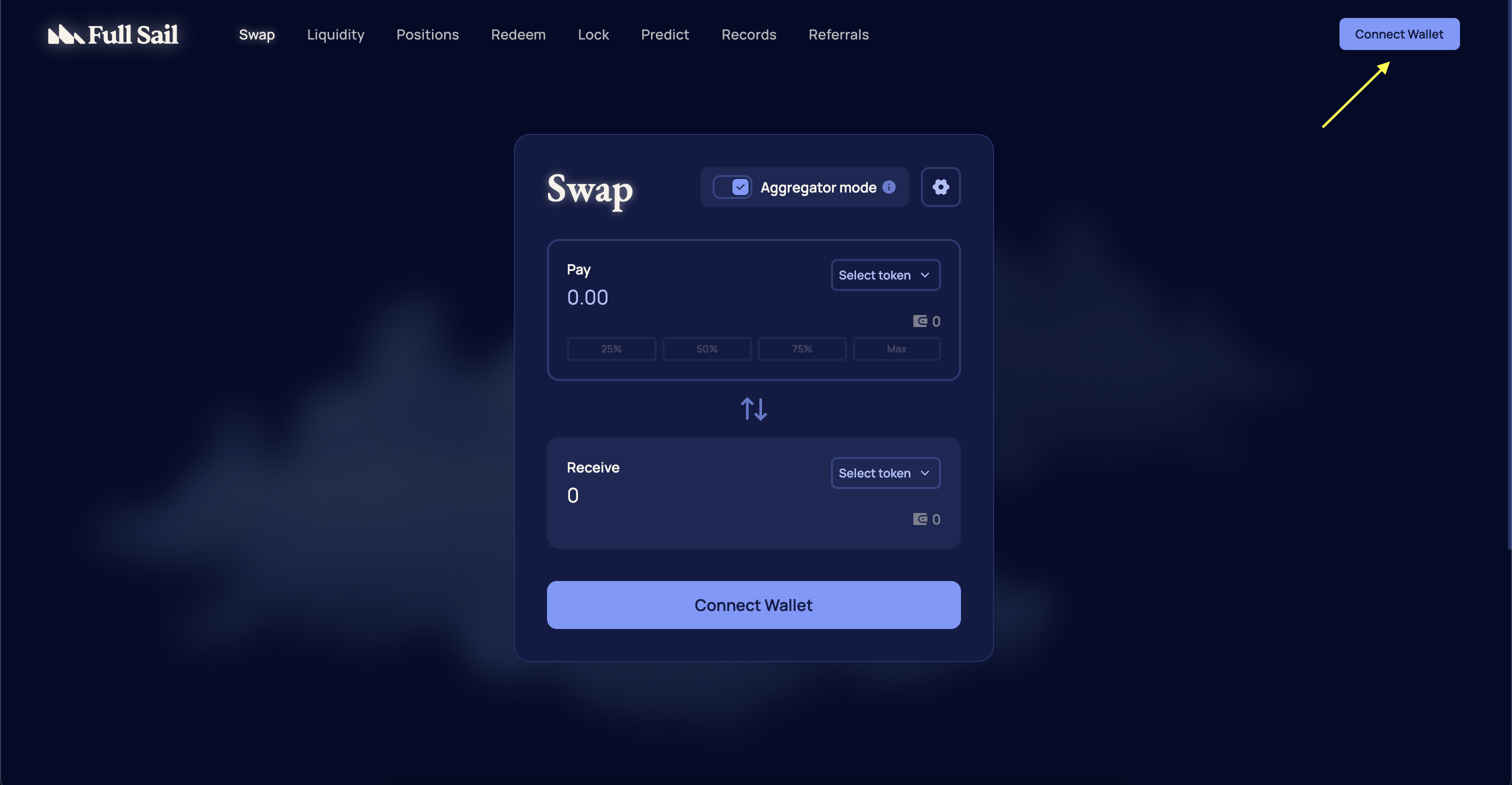
Go to [https://app.fullsail.finance/](https://app.fullsail.finance/) and connect a supported Sui wallet.
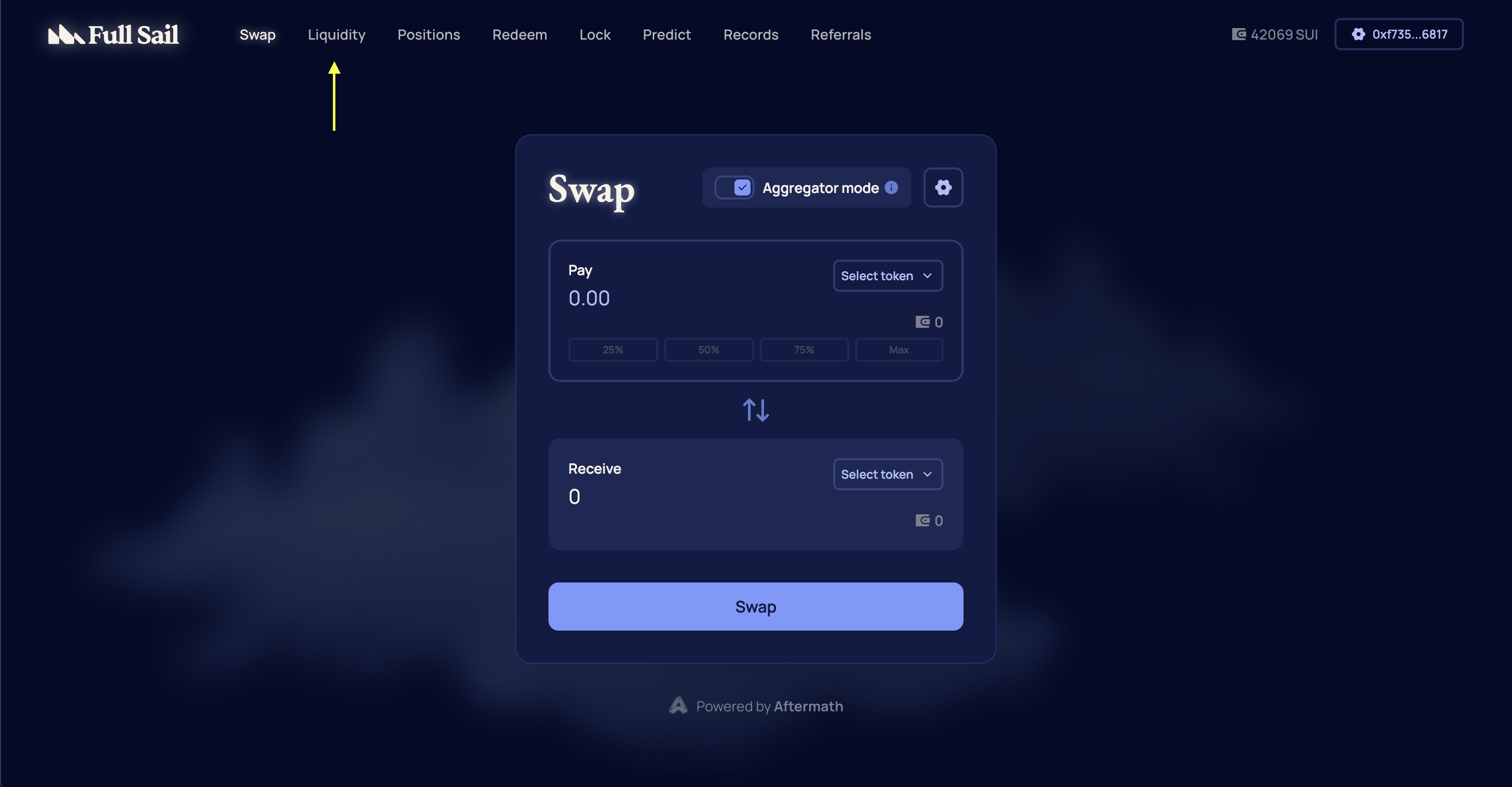
 From the navigation menu, select **Liquidity** or go directly to [https://app.fullsail.finance/liquidity](https://app.fullsail.finance/liquidity).
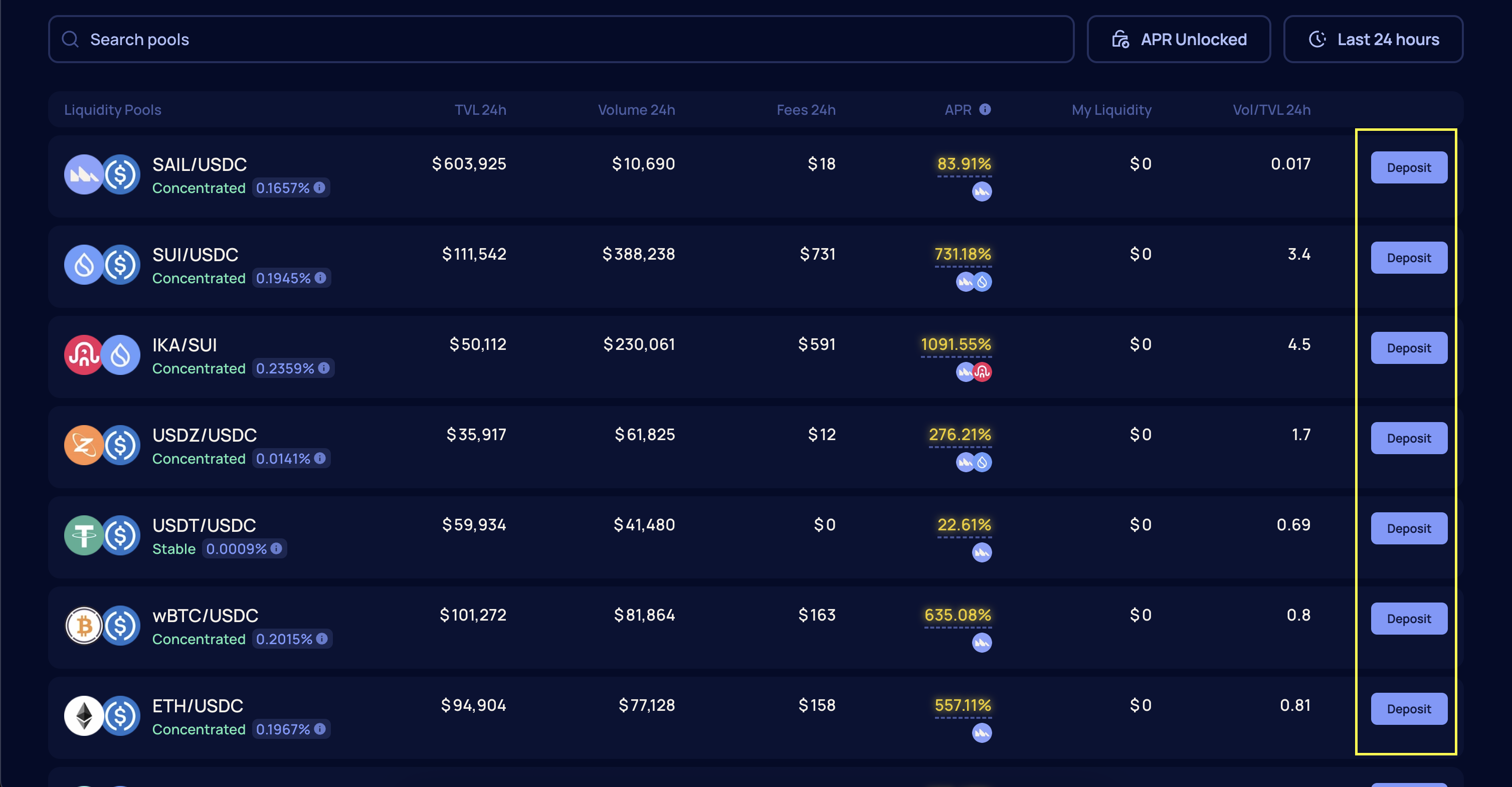
 Select the token pair you want to supply and choose **Deposit**.
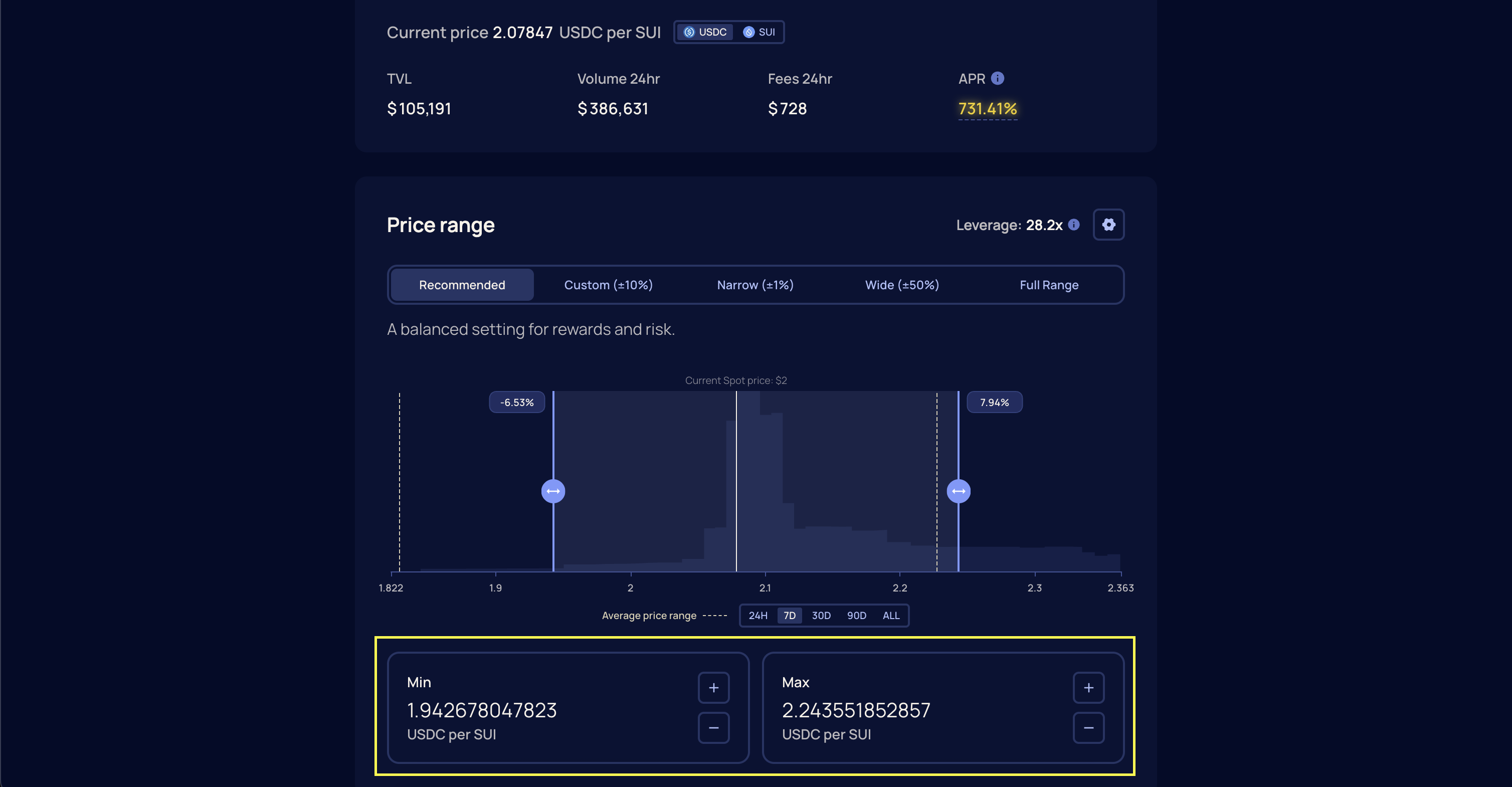
 Choose a price range for your position. Full Sail offers multiple range presets:
* **Recommended** gives a balance between rewards and risk.
* **Custom** allows you to define an exact price floor and ceiling for your position.
* **Narrow** and **Wide** options concentrate liquidity around tighter or broader intervals near the current price.
* **Full Range** covers all possible prices, similar to traditional AMMs.
Choose a price range for your position. Full Sail offers multiple range presets:
* **Recommended** gives a balance between rewards and risk.
* **Custom** allows you to define an exact price floor and ceiling for your position.
* **Narrow** and **Wide** options concentrate liquidity around tighter or broader intervals near the current price.
* **Full Range** covers all possible prices, similar to traditional AMMs.
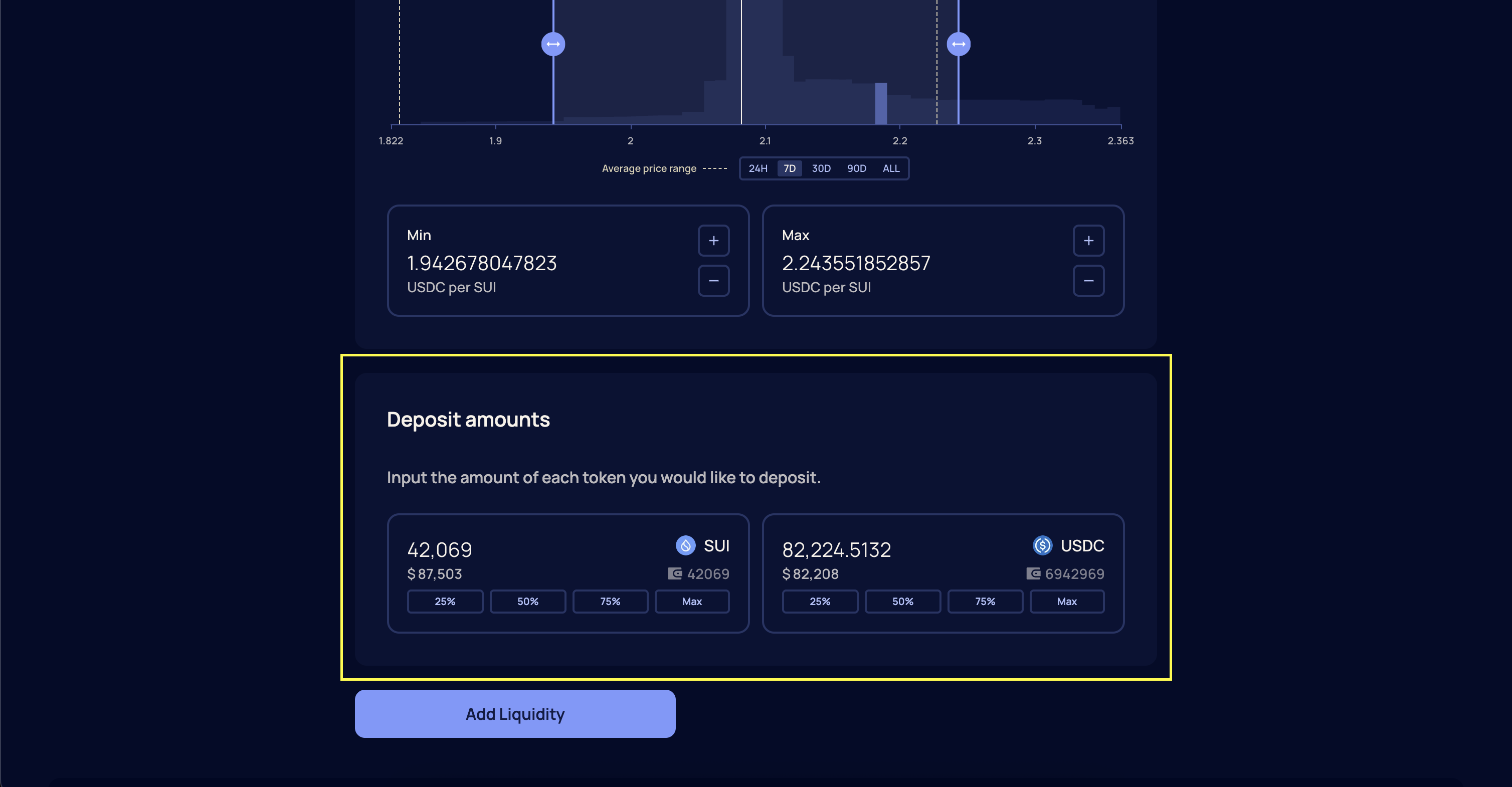
 Enter the amount of each token you want to provide and select **Add Liquidity**.
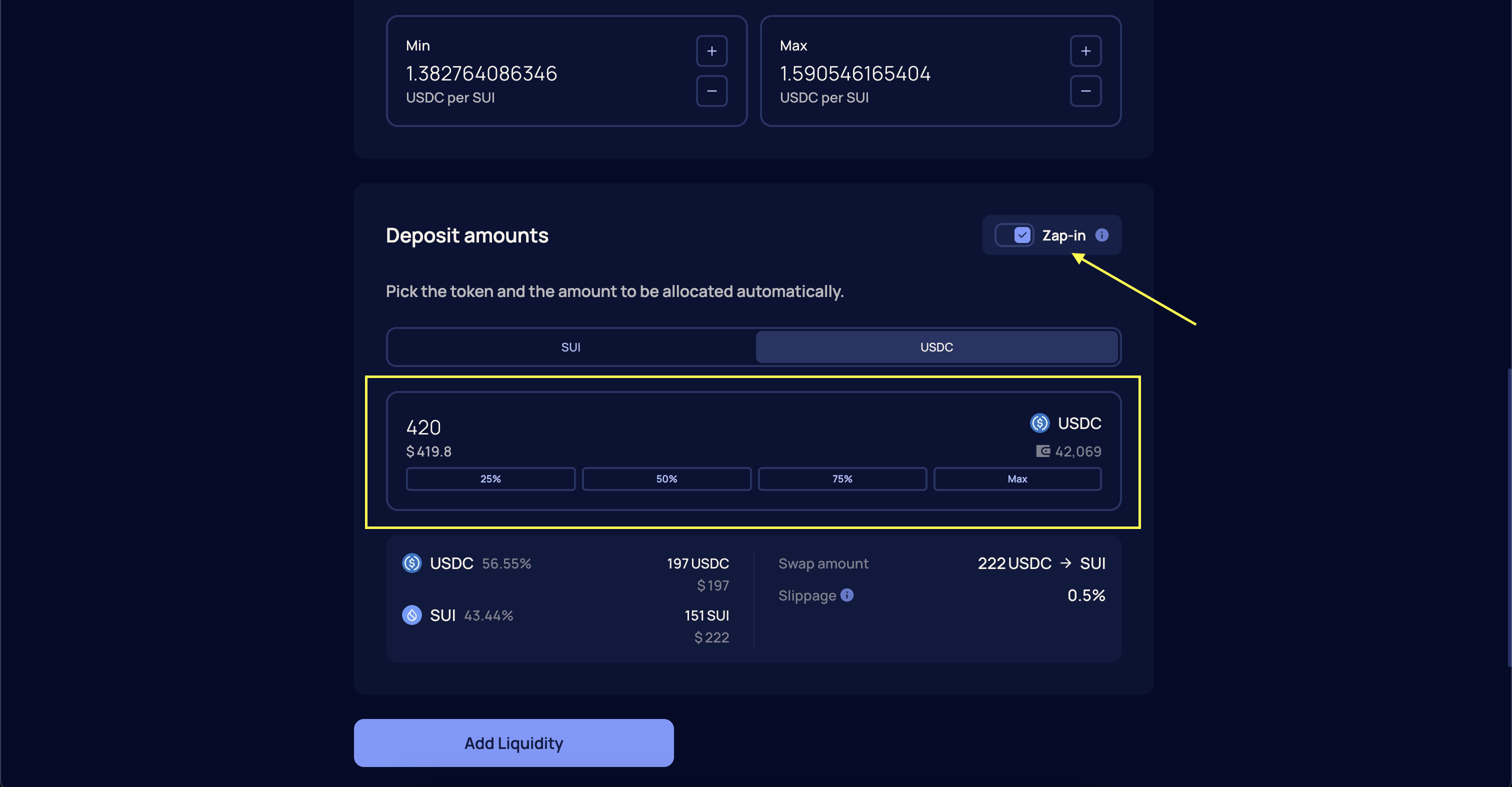
 To supply liquidity using a single asset, turn on the **Zap-in** toggle and select the asset you prefer to deposit. Enter the amount of tokens you want to provide and select **Add Liquidity**.
**Notice**\
Maximum zap-in size per LP is capped at \$5,000.
To supply liquidity using a single asset, turn on the **Zap-in** toggle and select the asset you prefer to deposit. Enter the amount of tokens you want to provide and select **Add Liquidity**.
**Notice**\
Maximum zap-in size per LP is capped at \$5,000.
 Confirm the transaction in your wallet. Once confirmed and finalized, your position will be active and visible in the Dashboard.
**Important**\
Your position will only earn fees when the current price is within your specified range.
## Managing Liquidity
Liquidity positions can be managed from the \*\*Positions \*\*page at [https://app.fullsail.finance/dashboard](https://app.fullsail.finance/dashboard). You can add more liquidity to an existing position or withdraw all or part of it at any time. Adding liquidity increases your position size while keeping the same price range. Withdrawing returns the underlying tokens to your wallet.
### How to Adjust LP Range
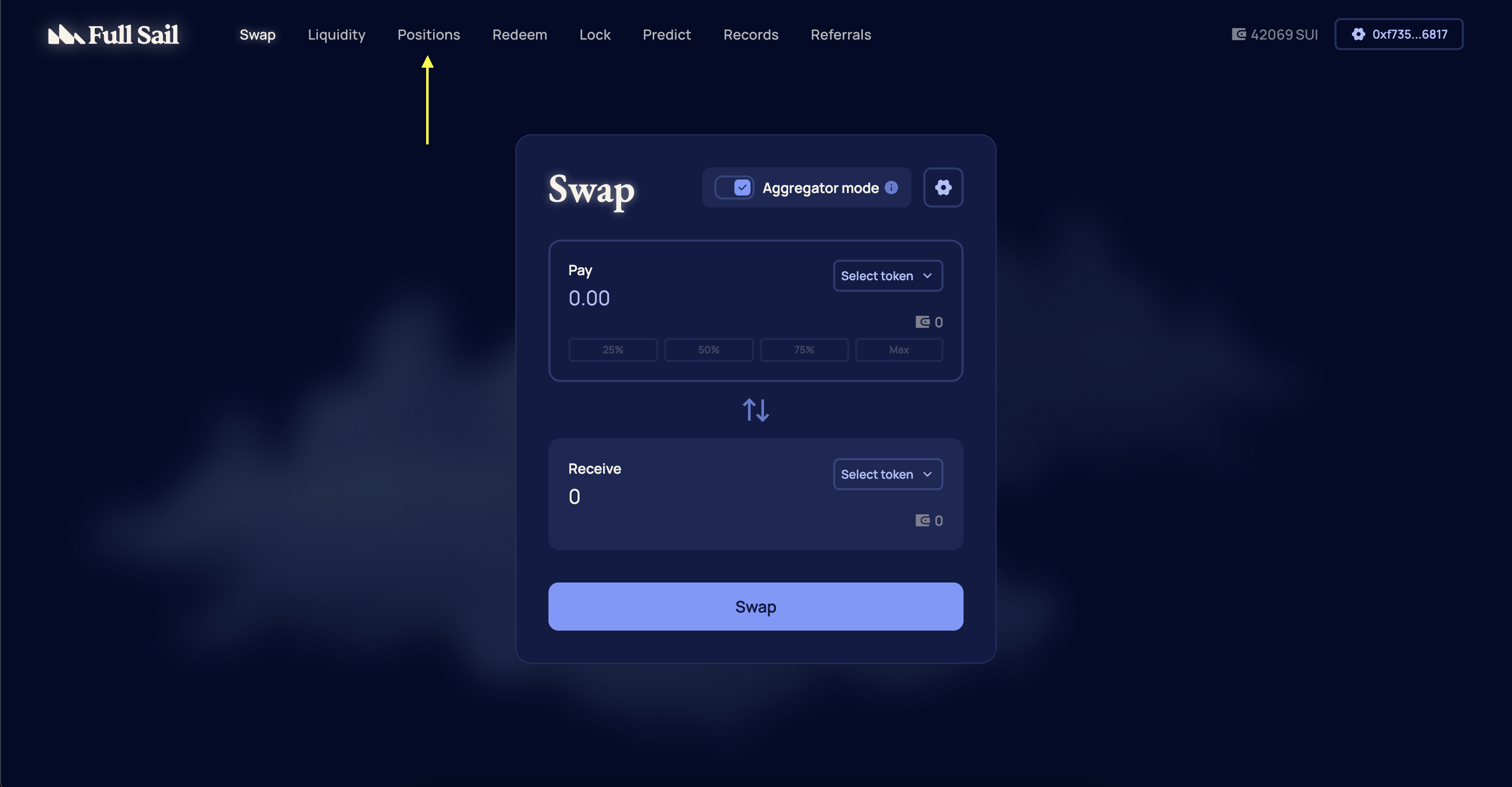
From the navigation menu, select **Positions** or go directly to [https://app.fullsail.finance/dashboard](https://app.fullsail.finance/dashboard).
Confirm the transaction in your wallet. Once confirmed and finalized, your position will be active and visible in the Dashboard.
**Important**\
Your position will only earn fees when the current price is within your specified range.
## Managing Liquidity
Liquidity positions can be managed from the \*\*Positions \*\*page at [https://app.fullsail.finance/dashboard](https://app.fullsail.finance/dashboard). You can add more liquidity to an existing position or withdraw all or part of it at any time. Adding liquidity increases your position size while keeping the same price range. Withdrawing returns the underlying tokens to your wallet.
### How to Adjust LP Range
From the navigation menu, select **Positions** or go directly to [https://app.fullsail.finance/dashboard](https://app.fullsail.finance/dashboard).
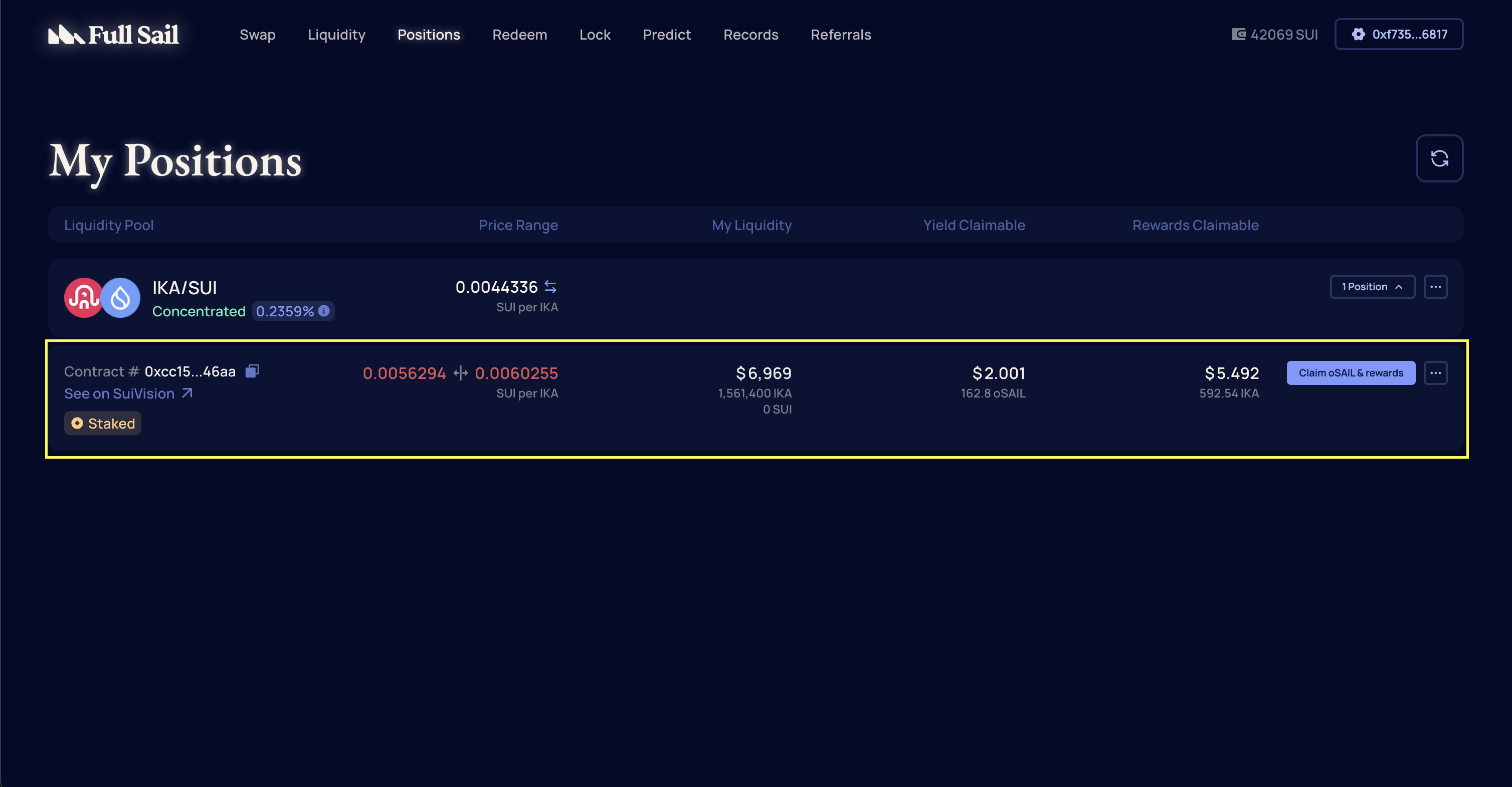
 Select the liquidity position you want to modify.
 On the **Manage Liquidity** page, choose **Adjust Range** under the **Action** section.
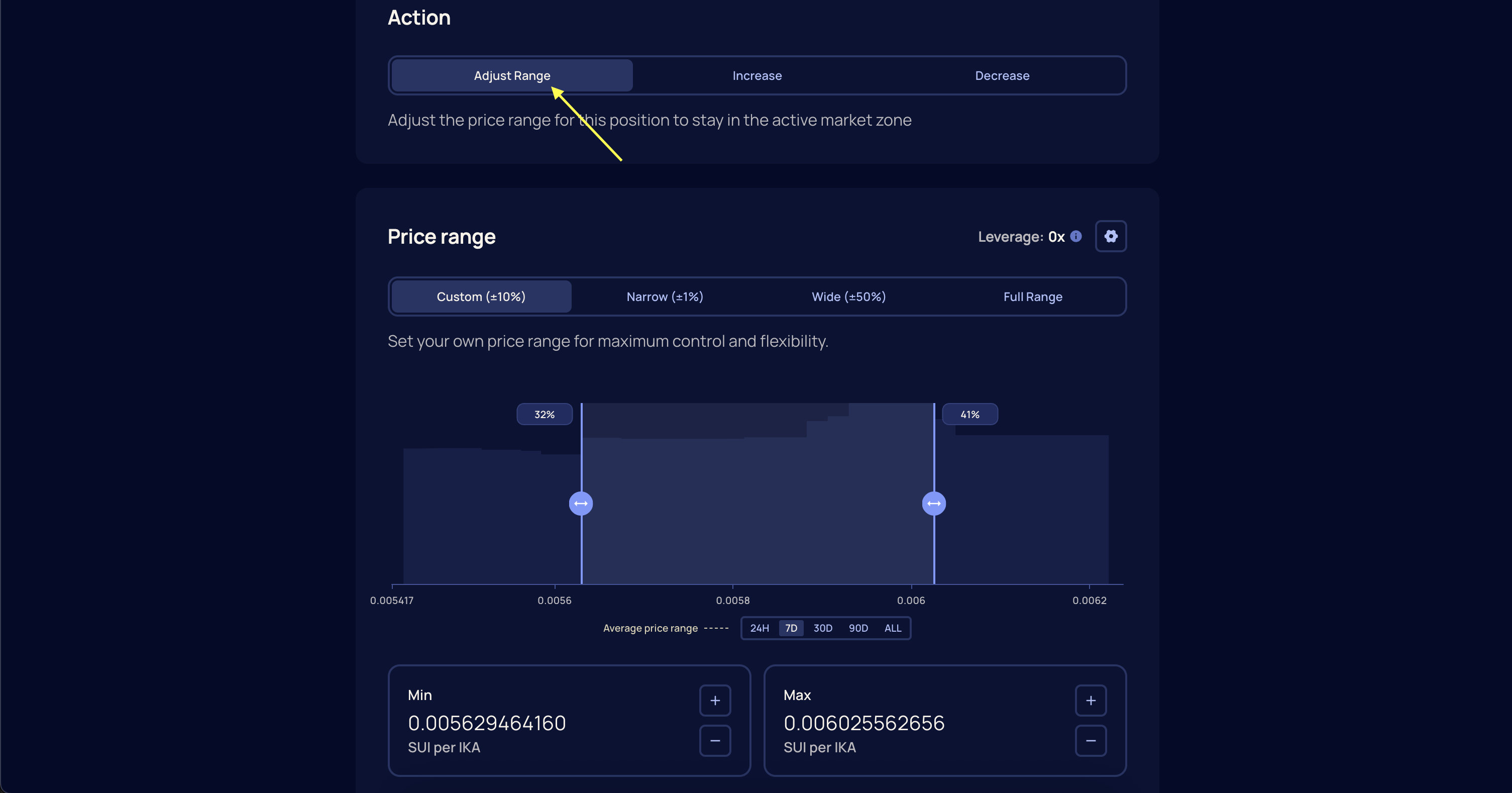 **Input the new price** range or **drag the handles** on the liquidity graph to specify the new range and select **Rebalance**.
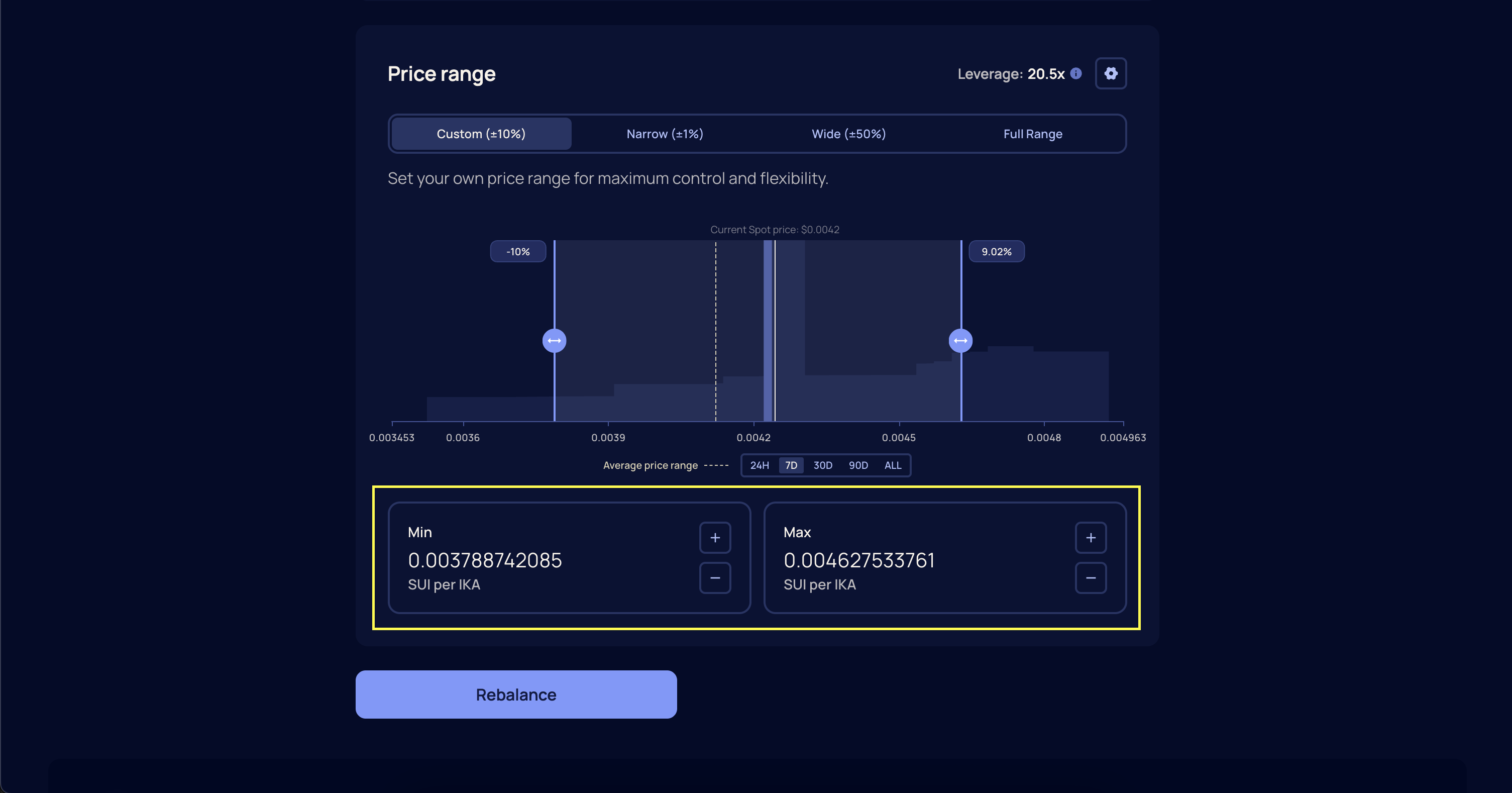 Confirm the transaction in your wallet. Once confirmed and finalized, your position will automatically be rebalanced.
**Important**\
Rebalancing may realize impermanent loss since assets are swapped to match the new range. Make sure the expected fees or rewards justify the adjustment before proceeding.
### How to Increase Liquidity
From the navigation menu, select **Positions** or go directly to [https://app.fullsail.finance/dashboard](https://app.fullsail.finance/dashboard).
Select the liquidity position you want to modify.
Confirm the transaction in your wallet. Once confirmed and finalized, your position will automatically be rebalanced.
**Important**\
Rebalancing may realize impermanent loss since assets are swapped to match the new range. Make sure the expected fees or rewards justify the adjustment before proceeding.
### How to Increase Liquidity
From the navigation menu, select **Positions** or go directly to [https://app.fullsail.finance/dashboard](https://app.fullsail.finance/dashboard).
Select the liquidity position you want to modify.
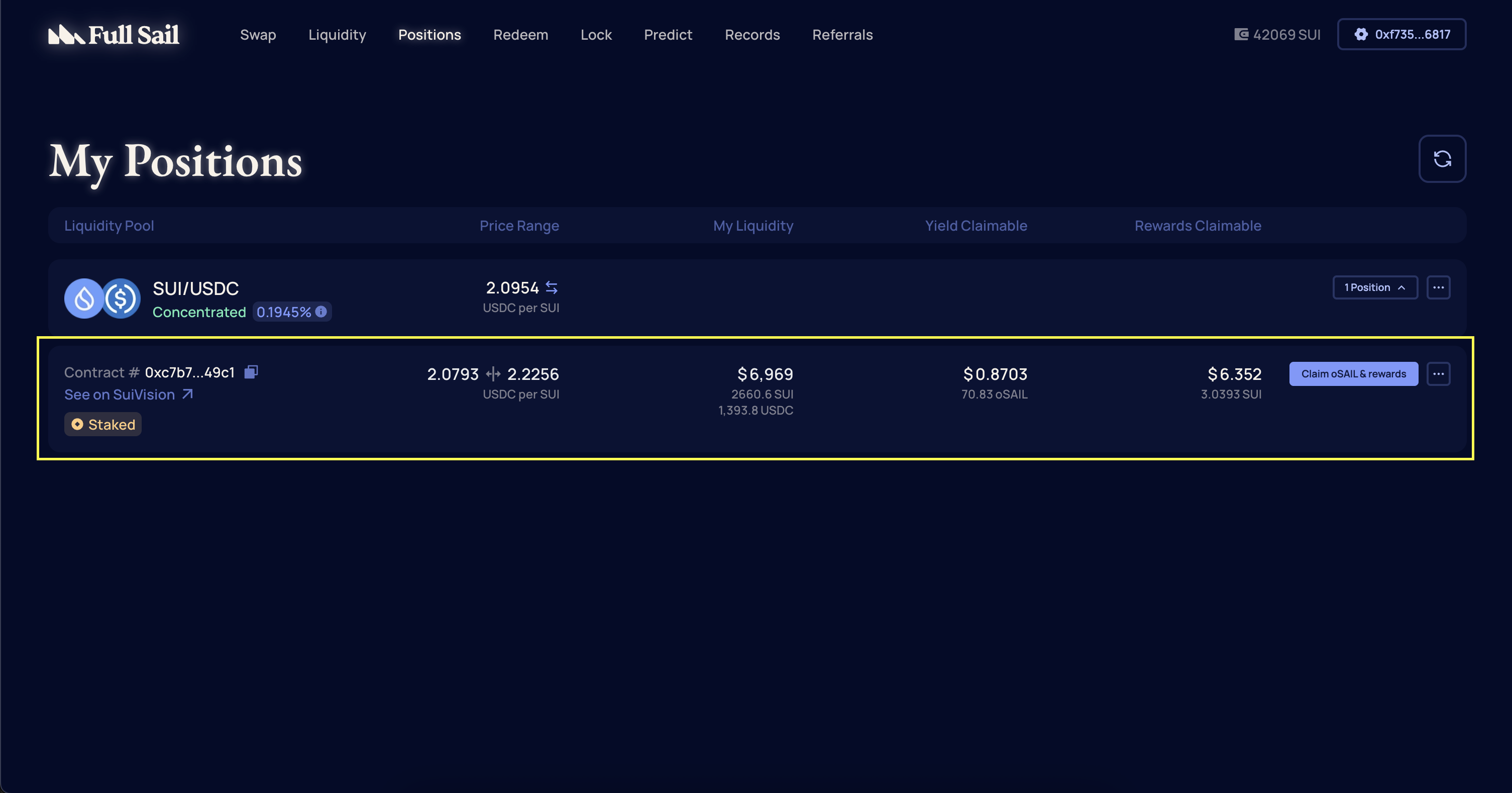 On the **Manage Liquidity** page, choose **Increase** under the **Action** section.
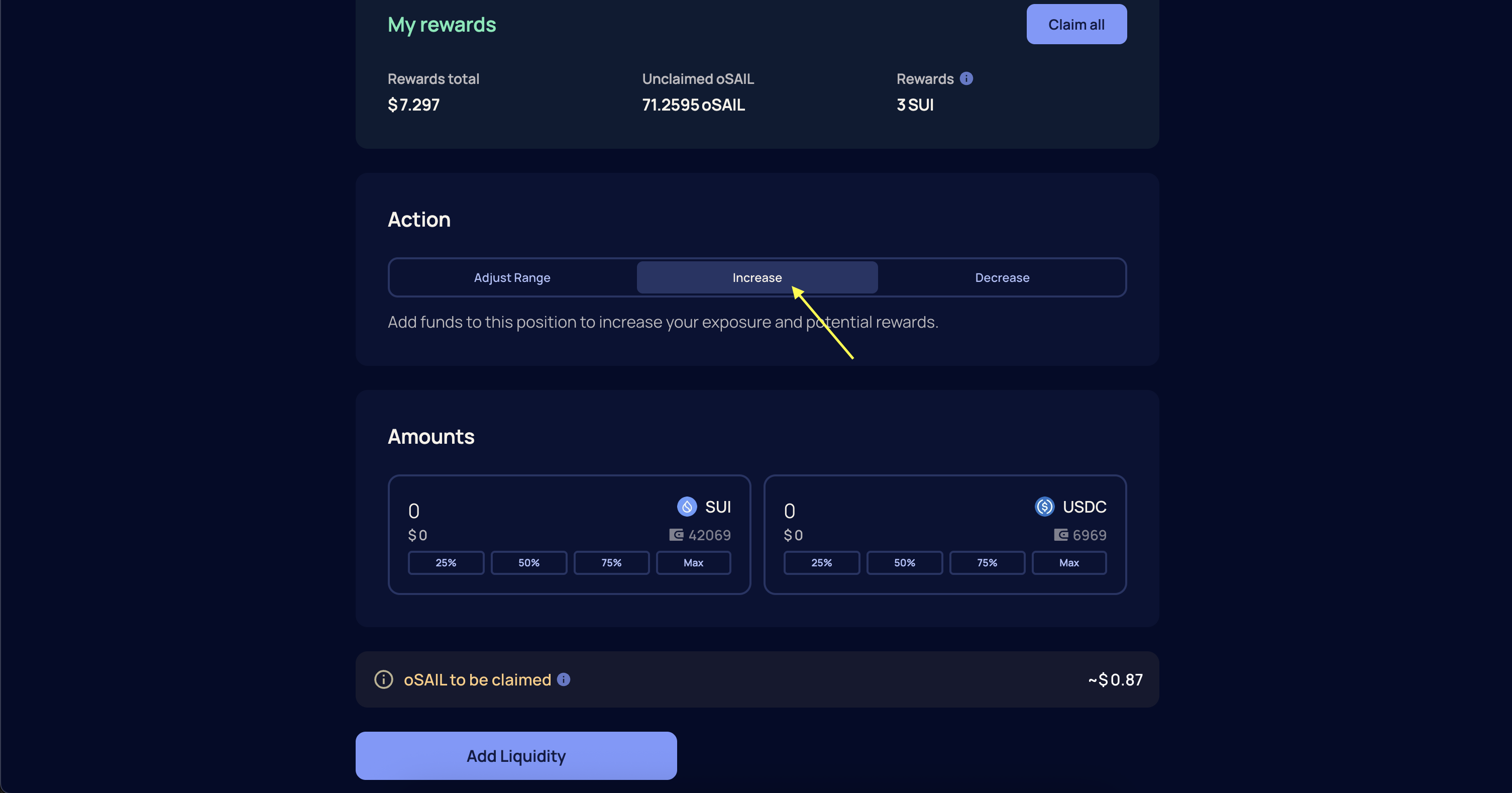 Specify the amounts of liquidity to add to the position and select **Add Liquidity**.
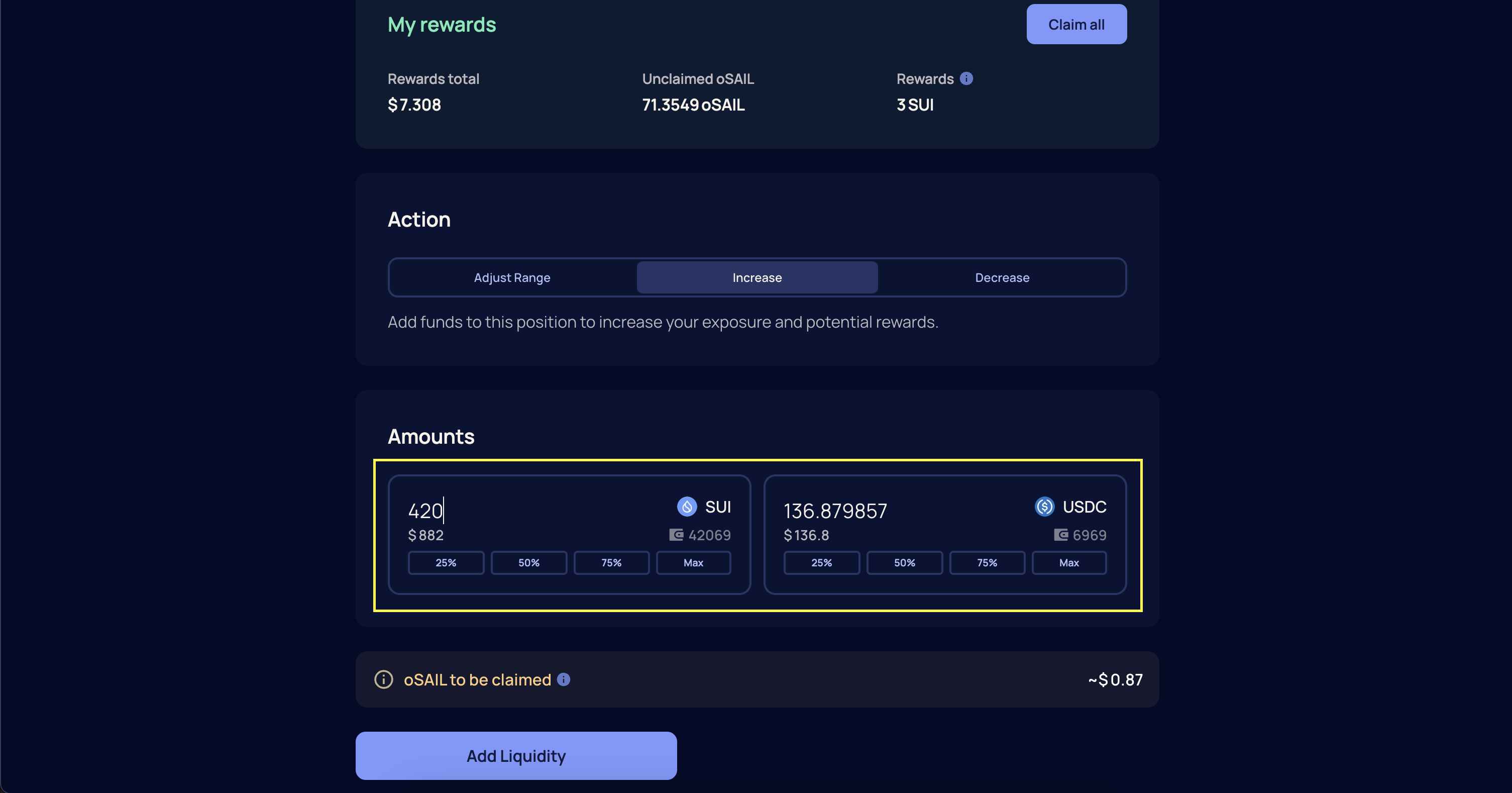 Confirm the transaction in your wallet. Once confirmed and finalized, your tokens will be added to your liquidity position.
### How to Remove Liquidity
From the navigation menu, select **Positions** or go directly to [https://app.fullsail.finance/dashboard](https://app.fullsail.finance/dashboard).
Select the liquidity position you want to modify.
On the **Manage Liquidity** page, choose **Decrease** under the **Action** section.
Confirm the transaction in your wallet. Once confirmed and finalized, your tokens will be added to your liquidity position.
### How to Remove Liquidity
From the navigation menu, select **Positions** or go directly to [https://app.fullsail.finance/dashboard](https://app.fullsail.finance/dashboard).
Select the liquidity position you want to modify.
On the **Manage Liquidity** page, choose **Decrease** under the **Action** section.
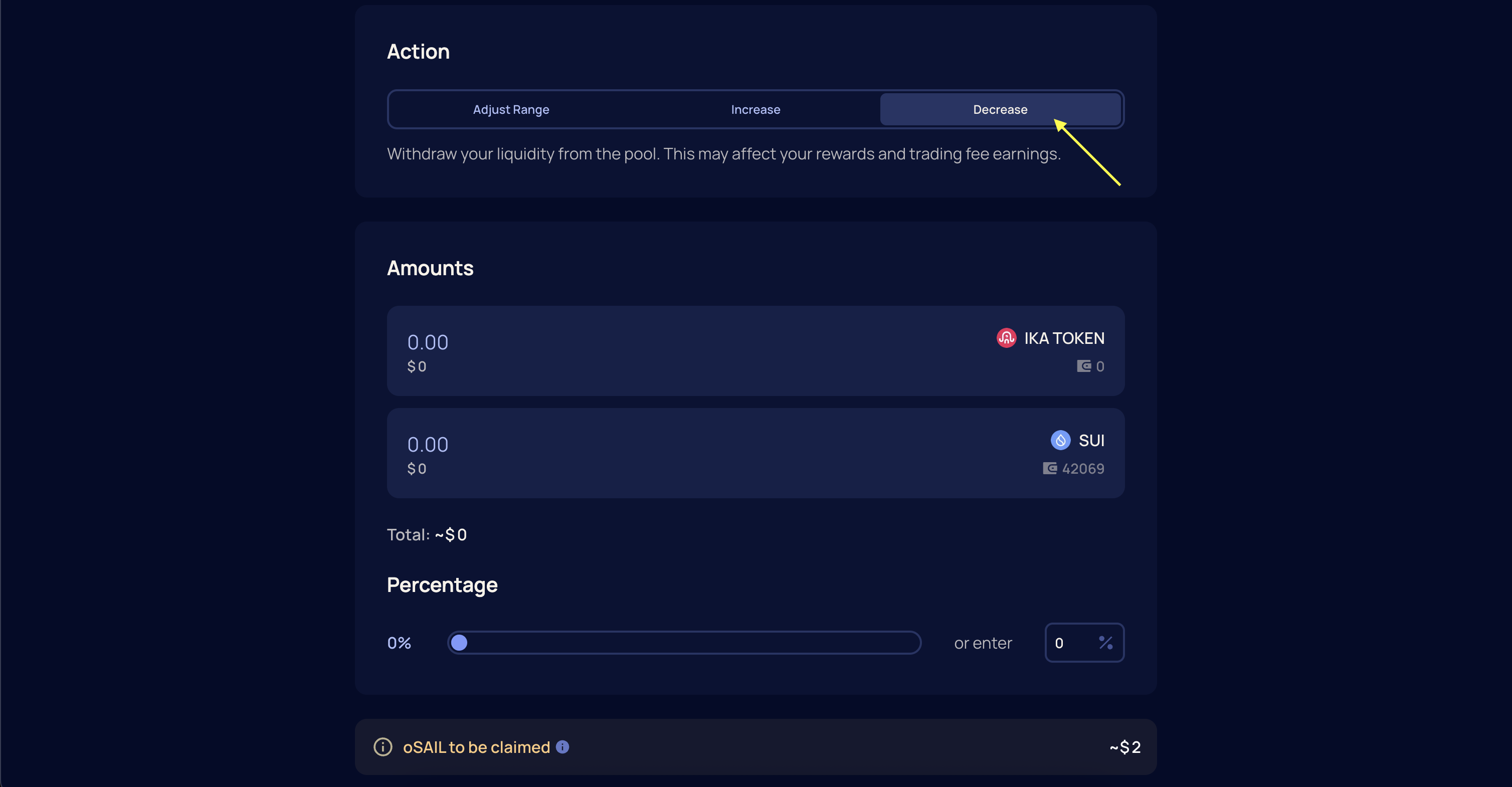 Specify the amounts or percentage of liquidity to remove. This can be a partial or full withdrawal. Then, select **Remove Liquidity**.
 Confirm the transaction in your wallet. Once confirmed and finalized, your tokens will be returned to your Sui wallet.
**Note**\
Liquidity that is outside your active price range does not generate fees, but it can still be withdrawn. Make sure you have enough SUI in your wallet to cover transaction fees.
***
### How to Switch Earning Mode
From the navigation menu, select **Positions** or go directly to [https://app.fullsail.finance/dashboard](https://app.fullsail.finance/dashboard).
Confirm the transaction in your wallet. Once confirmed and finalized, your tokens will be returned to your Sui wallet.
**Note**\
Liquidity that is outside your active price range does not generate fees, but it can still be withdrawn. Make sure you have enough SUI in your wallet to cover transaction fees.
***
### How to Switch Earning Mode
From the navigation menu, select **Positions** or go directly to [https://app.fullsail.finance/dashboard](https://app.fullsail.finance/dashboard).
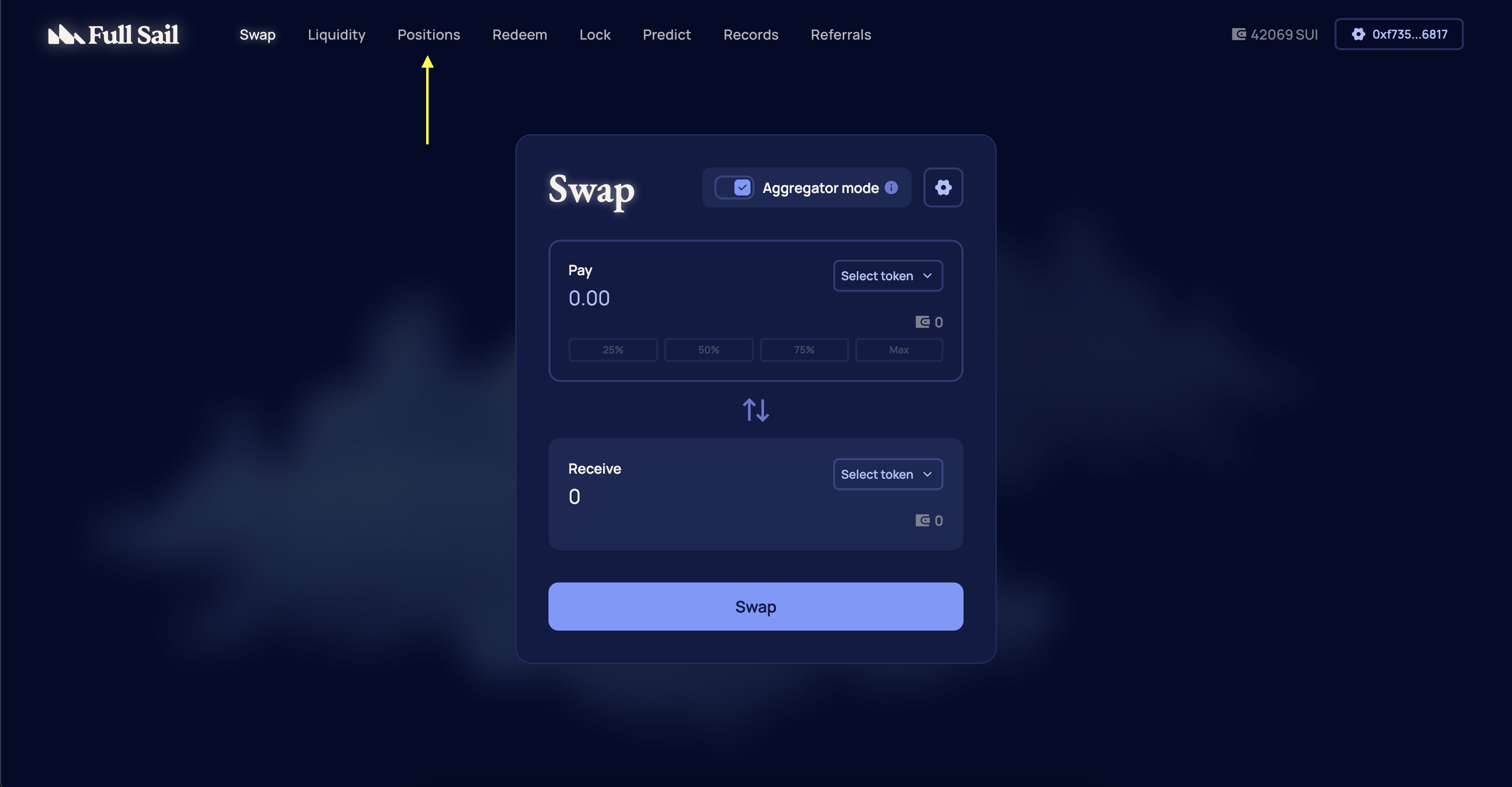 Select the liquidity position you want to modify.
On the **Manage Liquidity** page, choose **Earning Mode** under the **Action** section.
Select the liquidity position you want to modify.
On the **Manage Liquidity** page, choose **Earning Mode** under the **Action** section.
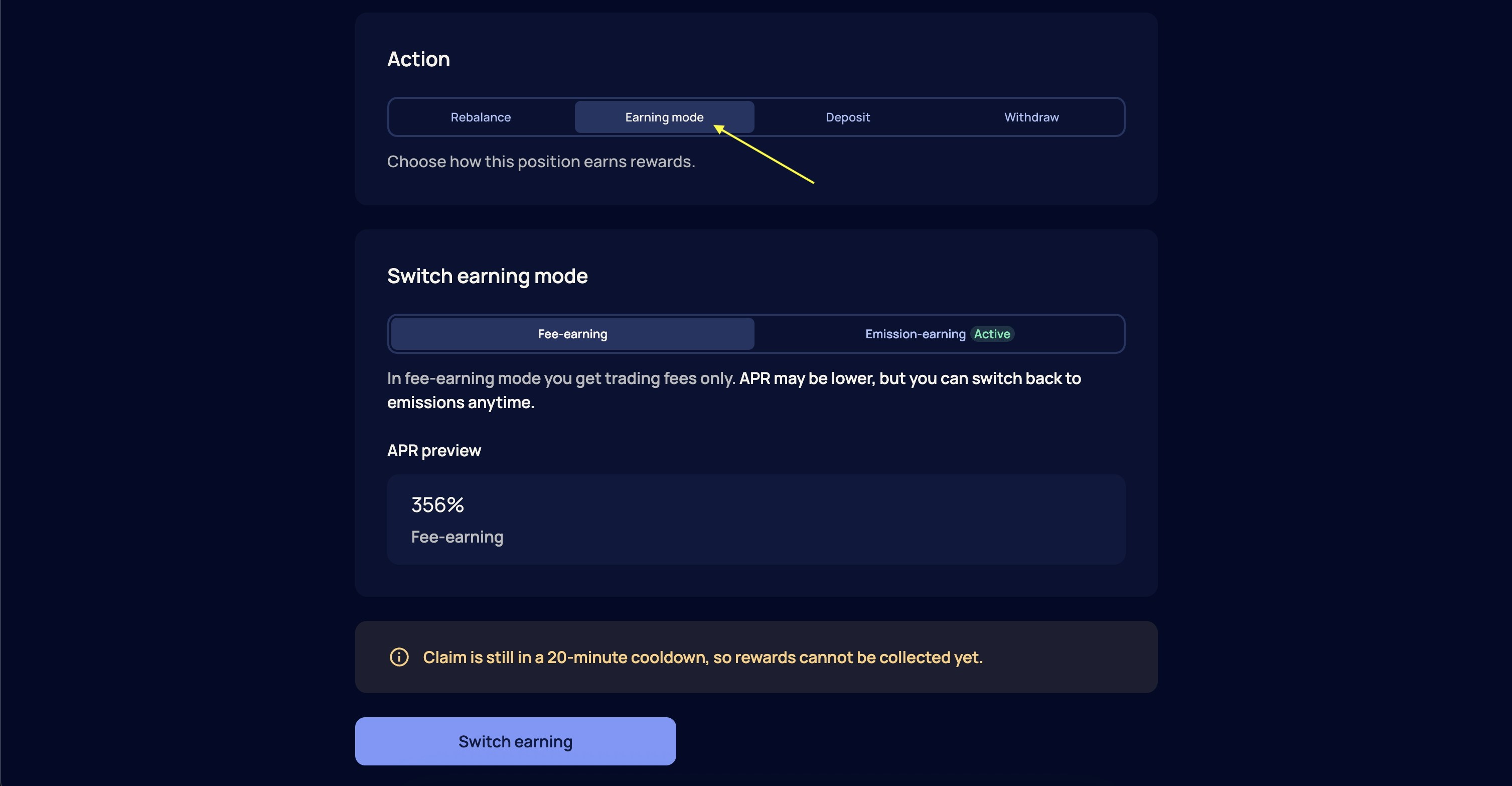 Select either **Fee-earning** or **Emission-earning.**
In **Fee-earning mode**, liquidity providers earn a share of the trading fees generated from transactions within the liquidity pools. This mode provides transaction-based rewards directly proportional to the pool's activity and the LP's share.
A 20% fee is levied for using Fee-earning mode. This fee will be used to buy back tokens, lock, and distributed to veSAIL holders.
In **Emission-earning mode**, liquidity providers receive SAIL token emissions as rewards for providing liquidity. These SAIL emissions can be:
* Withdrawn immediately as SAIL or USDC
* Locked into veSAIL (vote-escrowed SAIL) to earn double the APR
Select either **Fee-earning** or **Emission-earning.**
In **Fee-earning mode**, liquidity providers earn a share of the trading fees generated from transactions within the liquidity pools. This mode provides transaction-based rewards directly proportional to the pool's activity and the LP's share.
A 20% fee is levied for using Fee-earning mode. This fee will be used to buy back tokens, lock, and distributed to veSAIL holders.
In **Emission-earning mode**, liquidity providers receive SAIL token emissions as rewards for providing liquidity. These SAIL emissions can be:
* Withdrawn immediately as SAIL or USDC
* Locked into veSAIL (vote-escrowed SAIL) to earn double the APR
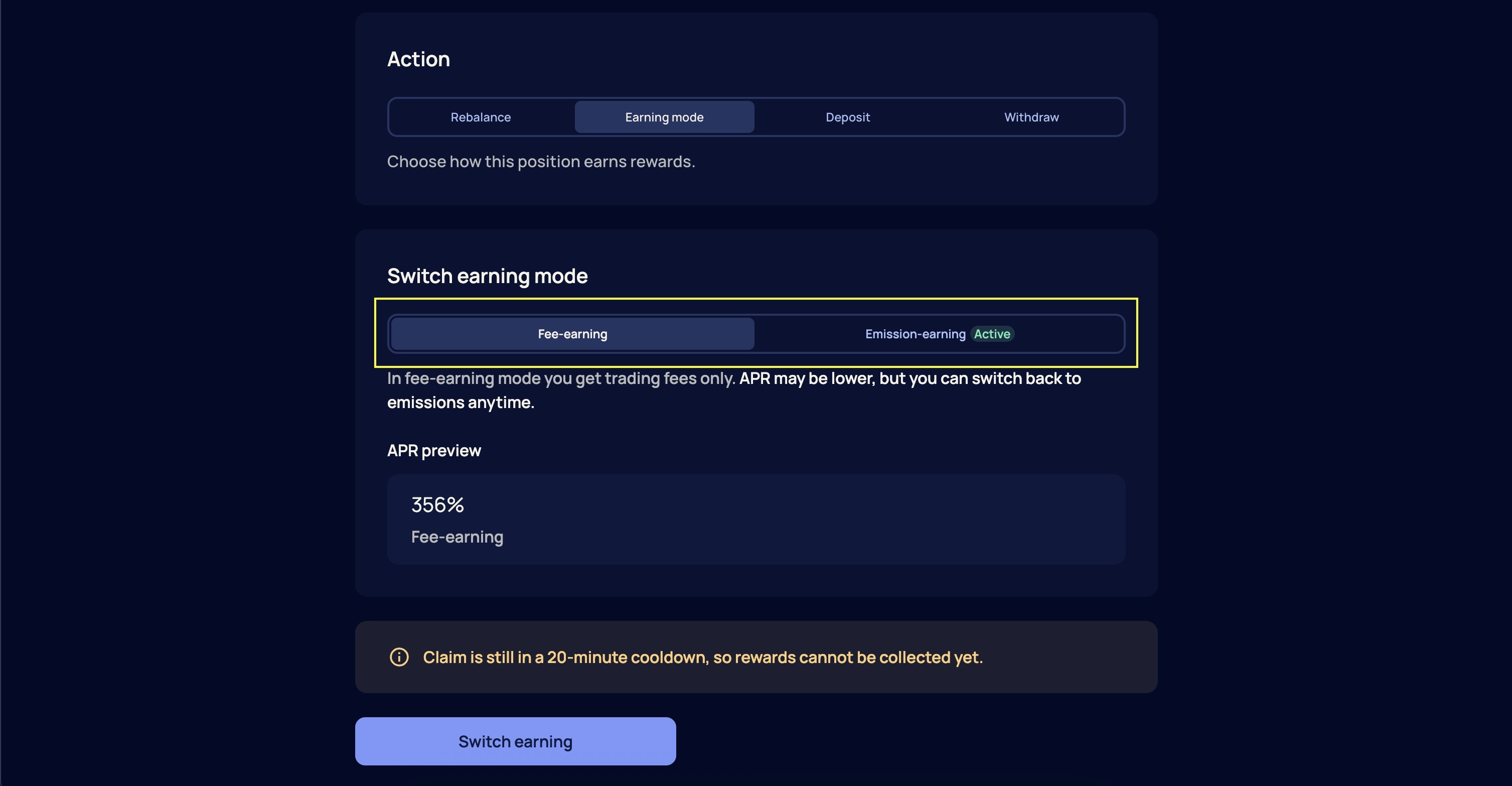 Select **Switch earning** and confirm the transaction in your wallet. Once confirmed and finalized, your earning mode will be switched.