> ## Documentation Index
> Fetch the complete documentation index at: https://docs.fullsail.finance/llms.txt
> Use this file to discover all available pages before exploring further.
# Vaults
Full Sail vaults are implemented as delegated liquidity vaults that enable users to deposit assets and delegate all liquidity management to an automated system. The system handles position rebalancing, monitors price movements, and adapts to changing market conditions, removing the need for active user intervention.
## How to Supply Liquidity into Vault
**Before You Start** Make sure you have a Sui wallet installed and sufficient balance of tokens plus enough SUI to cover transaction fees.
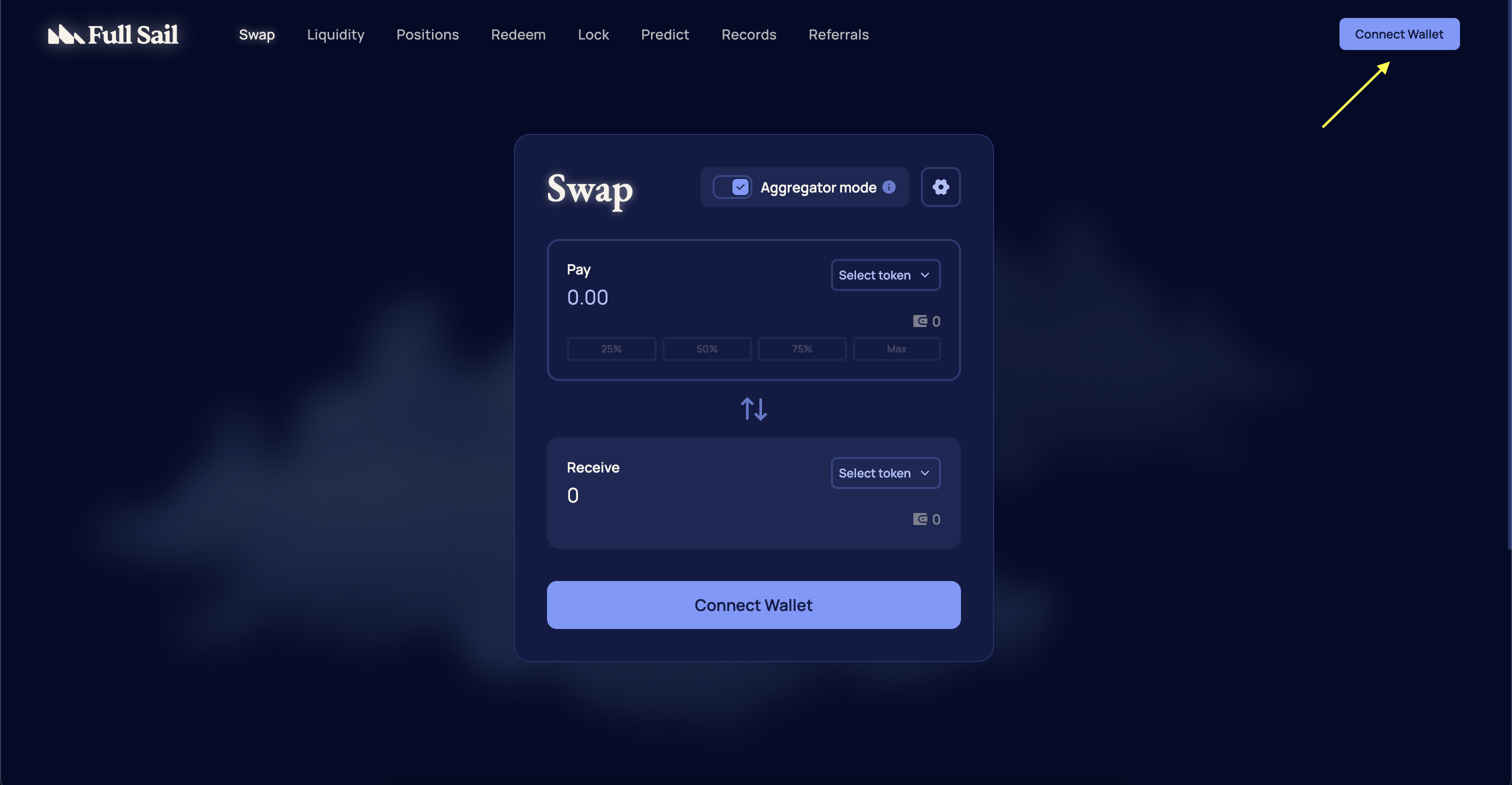
Select **Connect Wallet** and connect a supported Sui wallet.
 From the navigation menu, select **Liquidity** and select **Vaults** from the dropdown menu.
 Navigate to your desired vault and select **Deposit**.
Each vault has a deposit cap. Once the vault is full, no additional deposits will be accepted until liquidity is withdrawn from the vault.
Navigate to your desired vault and select **Deposit**.
Each vault has a deposit cap. Once the vault is full, no additional deposits will be accepted until liquidity is withdrawn from the vault.

 Enter the amount of either token you want to provide and select **Deposit**.
Pro tip: The required ratio of each token required to be deposited is shown on the **Deposit** module. Please make sure to have enough of each token before depositing.
Enter the amount of either token you want to provide and select **Deposit**.
Pro tip: The required ratio of each token required to be deposited is shown on the **Deposit** module. Please make sure to have enough of each token before depositing.
 To supply liquidity using a single asset, turn on the **Zap-in** toggle and select the asset you prefer to deposit. Enter the amount of tokens you want to provide and select **Deposit**.
**Notice**\
Maximum zap-in size per LP is capped at \$5,000.
To supply liquidity using a single asset, turn on the **Zap-in** toggle and select the asset you prefer to deposit. Enter the amount of tokens you want to provide and select **Deposit**.
**Notice**\
Maximum zap-in size per LP is capped at \$5,000.

 Confirm the transaction in your wallet. Once confirmed and finalized, your position will be active and visible in the Dashboard.
## How to Remove Liquidity from Vault
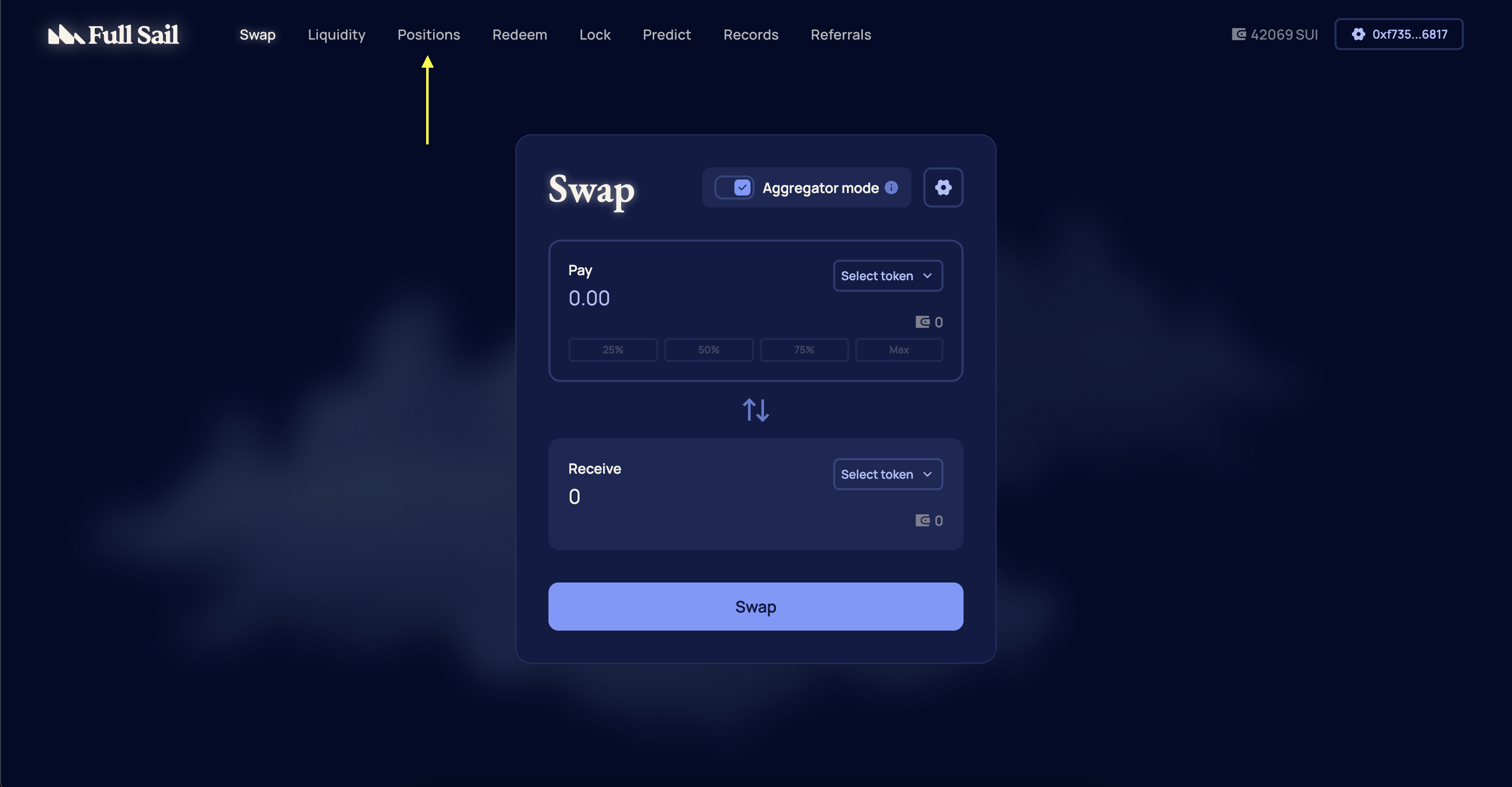
From the navigation menu, select **Positions** or go directly to [https://app.fullsail.finance/dashboard](https://app.fullsail.finance/dashboard).
Confirm the transaction in your wallet. Once confirmed and finalized, your position will be active and visible in the Dashboard.
## How to Remove Liquidity from Vault
From the navigation menu, select **Positions** or go directly to [https://app.fullsail.finance/dashboard](https://app.fullsail.finance/dashboard).
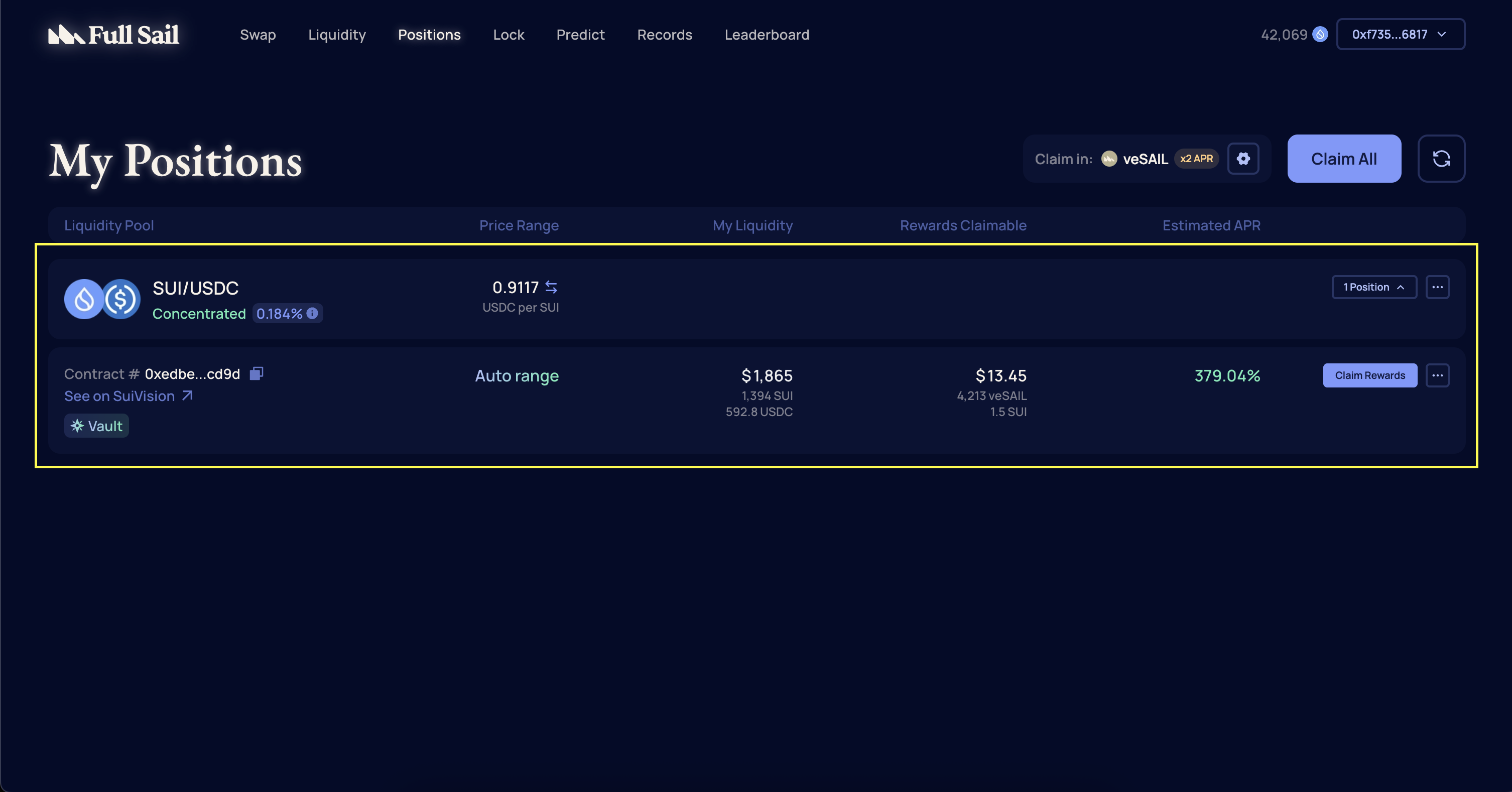
 Select the liquidity position you want to modify.
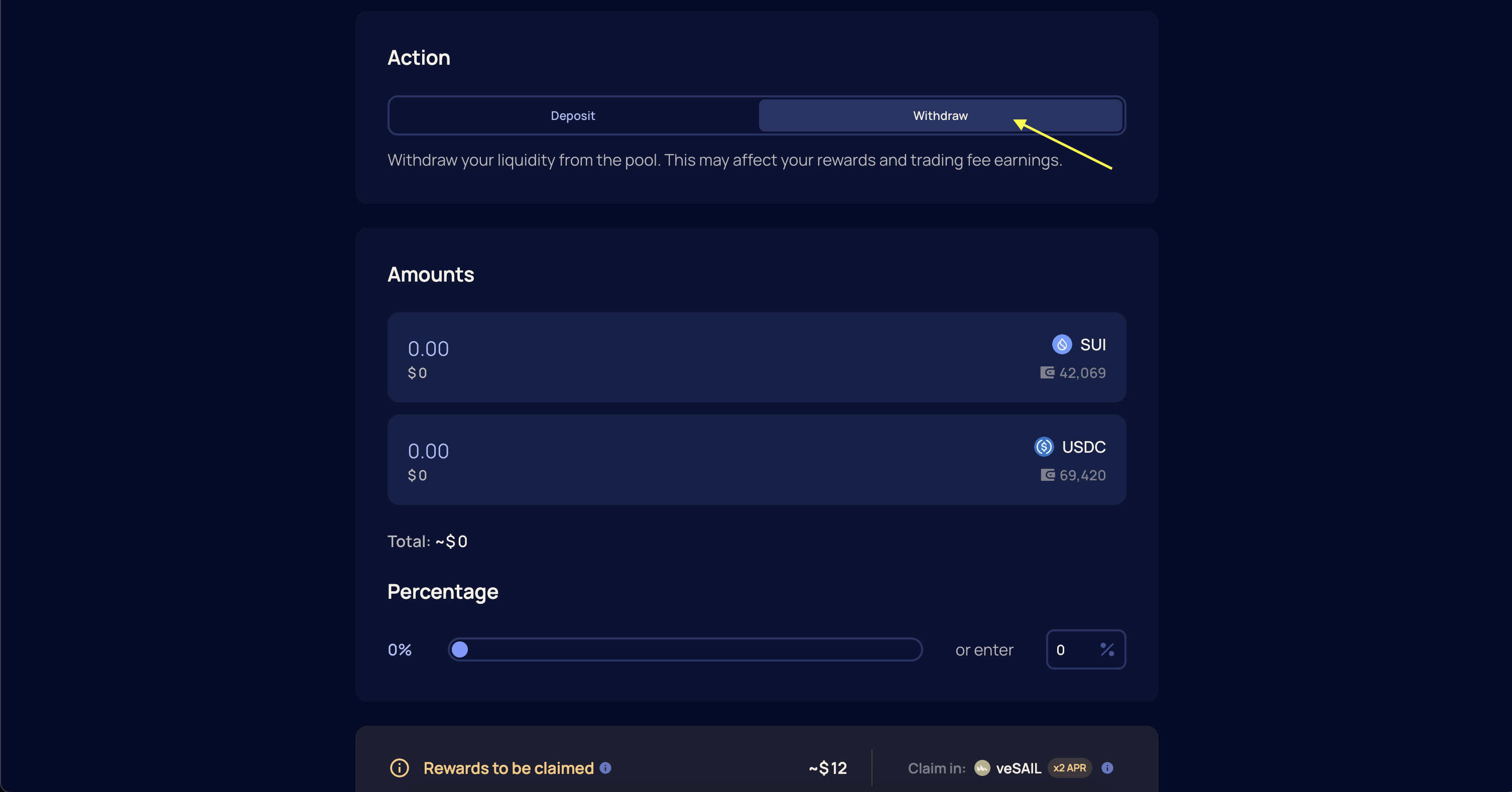
 On the **Manage Liquidity** page, choose **Withdraw** under the **Action** section.
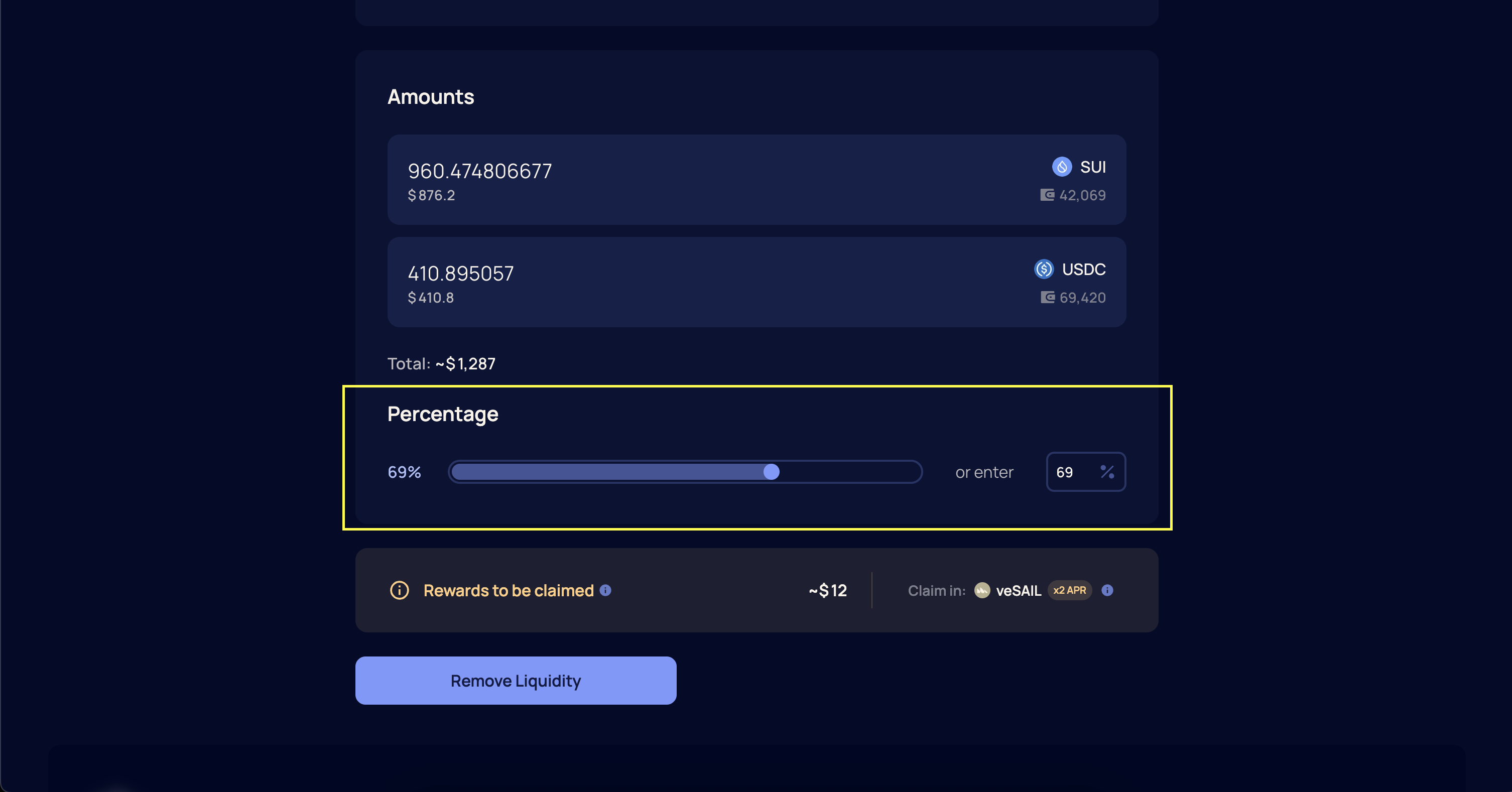
 Specify the amounts or percentage of liquidity to remove. This can be a partial or full withdrawal. Then, select **Remove Liquidity**.
 Confirm the transaction in your wallet. Once confirmed and finalized, your tokens will be returned to your Sui wallet.
***
Confirm the transaction in your wallet. Once confirmed and finalized, your tokens will be returned to your Sui wallet.
***